Executing Workflows
How to run a workflow from the Designer and monitor execution results in the Run view (/process-instances).
Running a Workflow from the Designer
The Execute button (green) in the Designer toolbar starts the current flow.
Before you can click Execute:
- The flow must have a name
- All unsaved changes must be saved first (the Save button must show "Saved")
To run a workflow:
- Open the flow in the Designer
- Save any unsaved changes (Ctrl+S)
- Click the green Execute button in the top toolbar
If the flow has input variables defined, an input dialog opens:
| Field | Description |
|---|---|
| One row per input variable | Enter the value to pass in at runtime |
| Required fields | Marked with * — all must be filled in |
| Default values | Shown as a hint below the input if configured |
Click Execute in the dialog to start the flow (or Cancel to abort).
If the flow has no input variables, execution starts immediately with no dialog.
After execution begins:
- The Execution Console panel slides up at the bottom of the Designer
- Initial log lines appear:
"Starting execution of workflow: {name}"and"Process instance created: {instanceId}" - Subsequent log lines stream in as each node runs
Execution Console (in the Designer)
When a flow is executed from the Designer, the Execution Console opens at the bottom of the canvas. It shows a live feed of log messages while the flow runs.
Log entries include:
- Timestamp
- Log level (INFO, ERROR, etc.)
- Message text
The execution console is a real-time view — it is not persistent. To view historical execution details, navigate to the Run page.
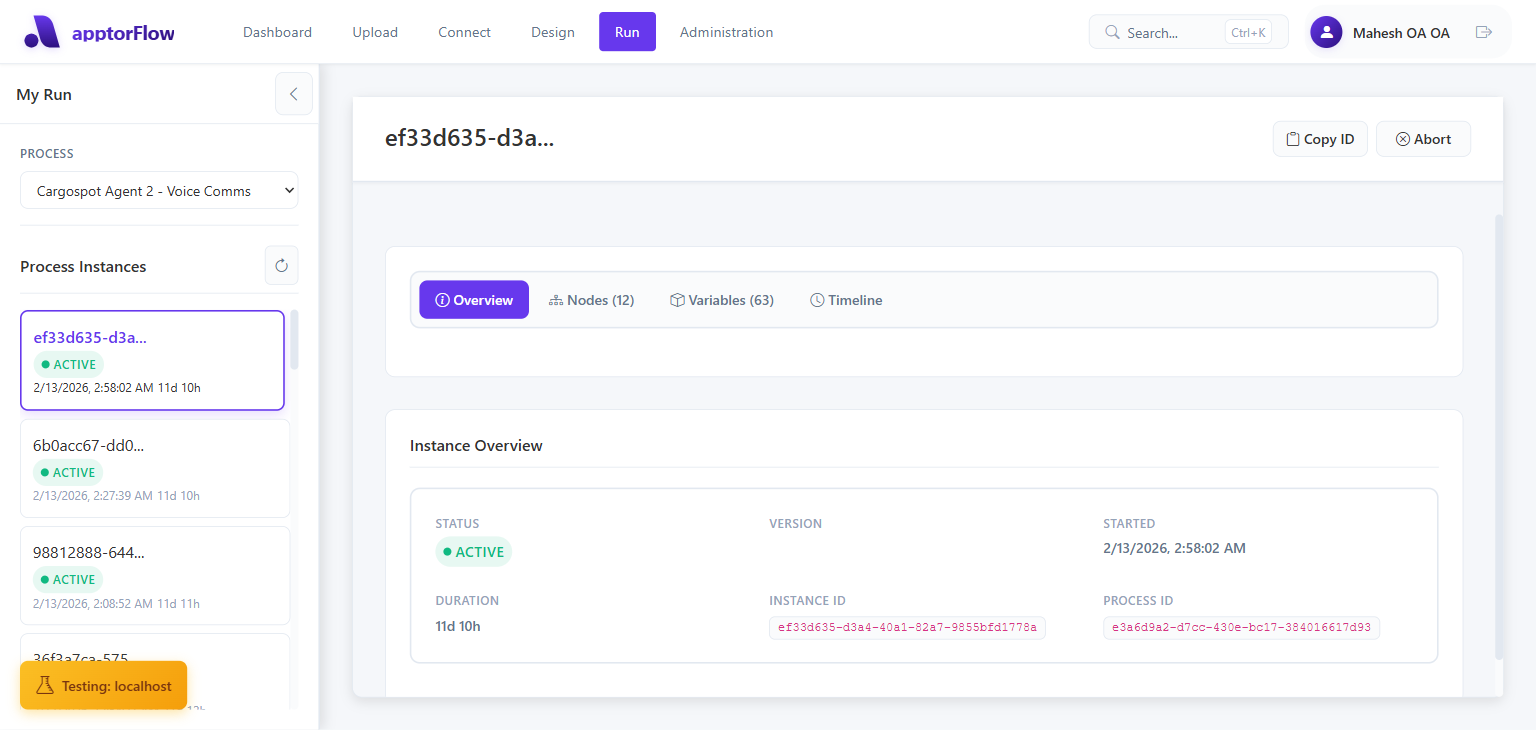
The Run Page (/process-instances)
Click Run in the top navigation bar to open the process instances view. This is the main place to monitor and inspect workflow executions.
Layout
The page has two areas:
| Area | Content |
|---|---|
| Left panel | Process selector + instance list |
| Right panel | Detail view for the selected instance |
Left Panel
Process selector — A dropdown at the top of the left panel. Select a workflow to see its instances. Shows "Select Process" when none is chosen.
Process Instances list — Below the selector, lists all executions for the selected workflow. Each item shows:
- First 12 characters of the instance ID (with ellipsis)
- Status badge (color-coded)
- Start time
- Duration
A Refresh button reloads the list from the server. The left panel can be collapsed (using the chevron button) to give the detail area more space.
Empty states:
- No workflow selected → "Select a process — Choose a process from the dropdown above"
- Workflow selected but no executions → "No instances yet — This process hasn't been executed yet"
Instance Statuses
| Status | Color | Meaning |
|---|---|---|
| Active | Green | Currently running |
| Waiting | Orange | Paused (e.g., at an Input node, waiting for human input) |
| Failed | Red | Execution encountered an error and stopped |
| Completed | Blue | Finished successfully |
Instance Detail View
Click any instance in the left list to open its detail view in the right panel.
The detail header shows the (truncated) instance ID with a Copy button to copy the full ID to the clipboard.
Abort button — Visible only for Active (running) instances. Click to cancel the execution. A confirmation dialog appears before aborting.
Overview Tab
| Field | Description |
|---|---|
| Status | Current status with color badge |
| Version | Workflow version that executed |
| Started | Timestamp when execution began |
| Duration | Elapsed time (or total time if completed) |
| Instance ID | Full UUID (copyable) |
| Process ID | Full workflow UUID (copyable) |
Nodes Tab
Lists every node that executed, sorted by start time. Heading shows the count (e.g., "Nodes (5)").
Each node entry shows:
- Node number and name (e.g., "#1 Start Event")
- Status badge (see node statuses below)
- Node type (e.g.,
startEvent,serviceTask) - Start timestamp
- Duration
Node statuses:
| Status | Meaning |
|---|---|
| Created | Node created but not yet started |
| Assigned | Task assigned to a user or group |
| Claimed | Task claimed by a specific user |
| Updated | Task data updated |
| In Progress | Currently executing |
| Cancelled | Node was cancelled |
| Error | Node encountered an error |
| Completed | Node finished successfully |
Variables Tab
Displays all process variables at the time of viewing. Heading shows the count (e.g., "Variables (3)").
Each entry shows:
- Variable name
- Variable value (JSON values are pretty-printed)
Internal system variables (aiMemoryContexts, cancelledNodes, children, processName) are hidden from this view.
If no variables exist, shows "No Variables".
Timeline Tab
Shows nodes in chronological order as a timeline:
- Time the node started
- Node name
- Duration label and value
Keyboard Shortcuts
The Run page does not have its own keyboard shortcuts. Use the top navbar or browser back button to navigate.
Permissions
Some actions are only available to users with specific permissions:
| Action | Required permission |
|---|---|
| View execution list (Refresh button) | canViewExecutions |
| Abort a running instance | canAbortExecutions |
| Execute a workflow (Execute button in Designer) | canExecuteWorkflows |