UI Guide
Complete guide to the Apptor Flow web interface.
Application Layout
The Apptor Flow UI is a single-page Angular application. After logging in, you land on the Flow Dashboard.
Top Navigation Bar
A persistent top navigation bar is present on every page:
| Button | Navigates to | What's there |
|---|---|---|
| Dashboard | /flows | Your flow list — create and manage workflows |
| Upload | /knowledge-base | Knowledge Base — RAG document collections |
| Connect | /connections | Connections — integrations to external services |
| Design | /designer | Workflow Designer — last opened flow |
| Run | /process-instances | Execution monitoring — all workflow runs |
| Administration | /admin | Admin panel — users, API keys, secrets, webhooks, analytics |
The current user's name is shown in the top-right corner. Click it to access your profile or sign out.
Main Sections
Flow Dashboard (/flows)
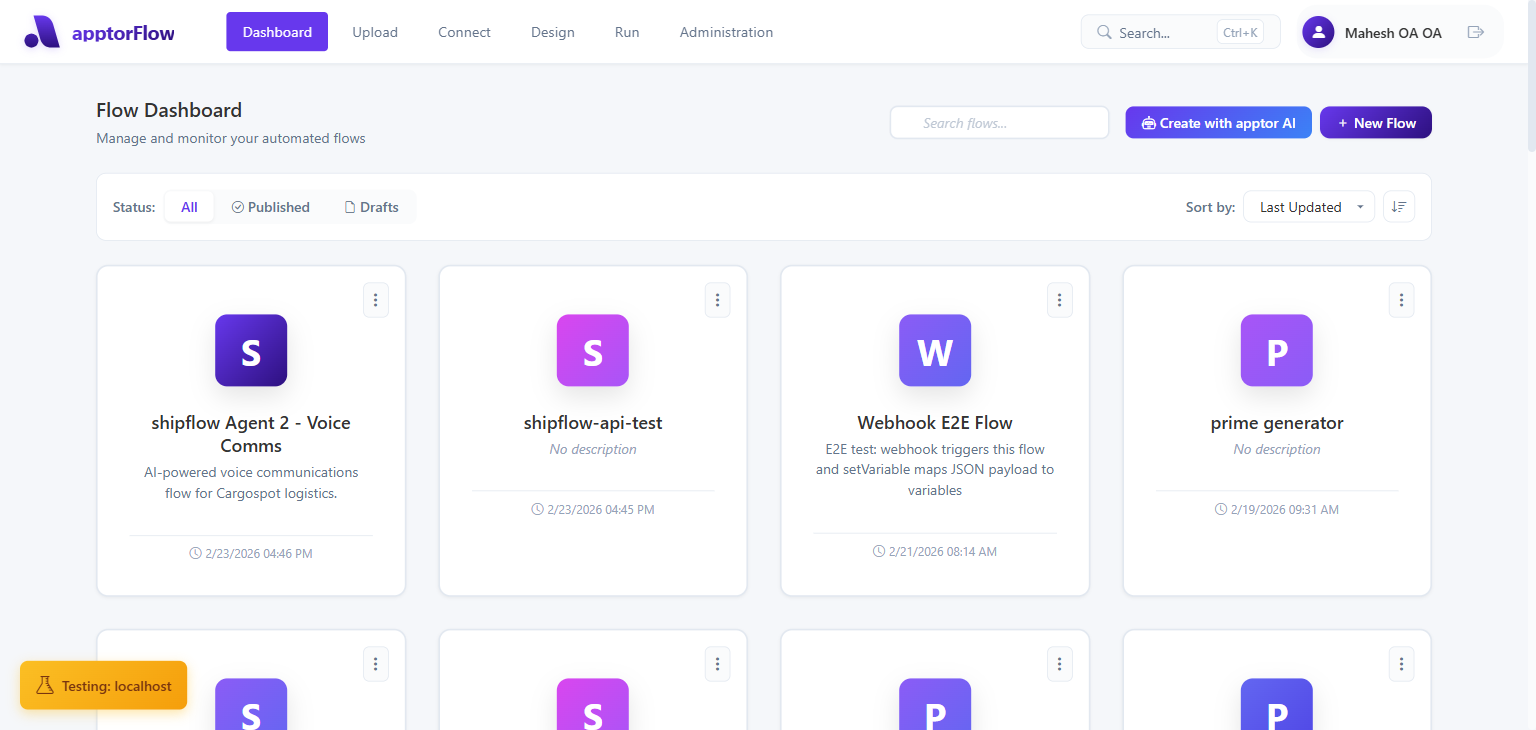
The home screen. Shows all flows in your organization as cards. You can filter by status (All / Published / Drafts), search by name, sort by Last Updated / Created Date / Name, and create new flows.
Knowledge Base (/knowledge-base)
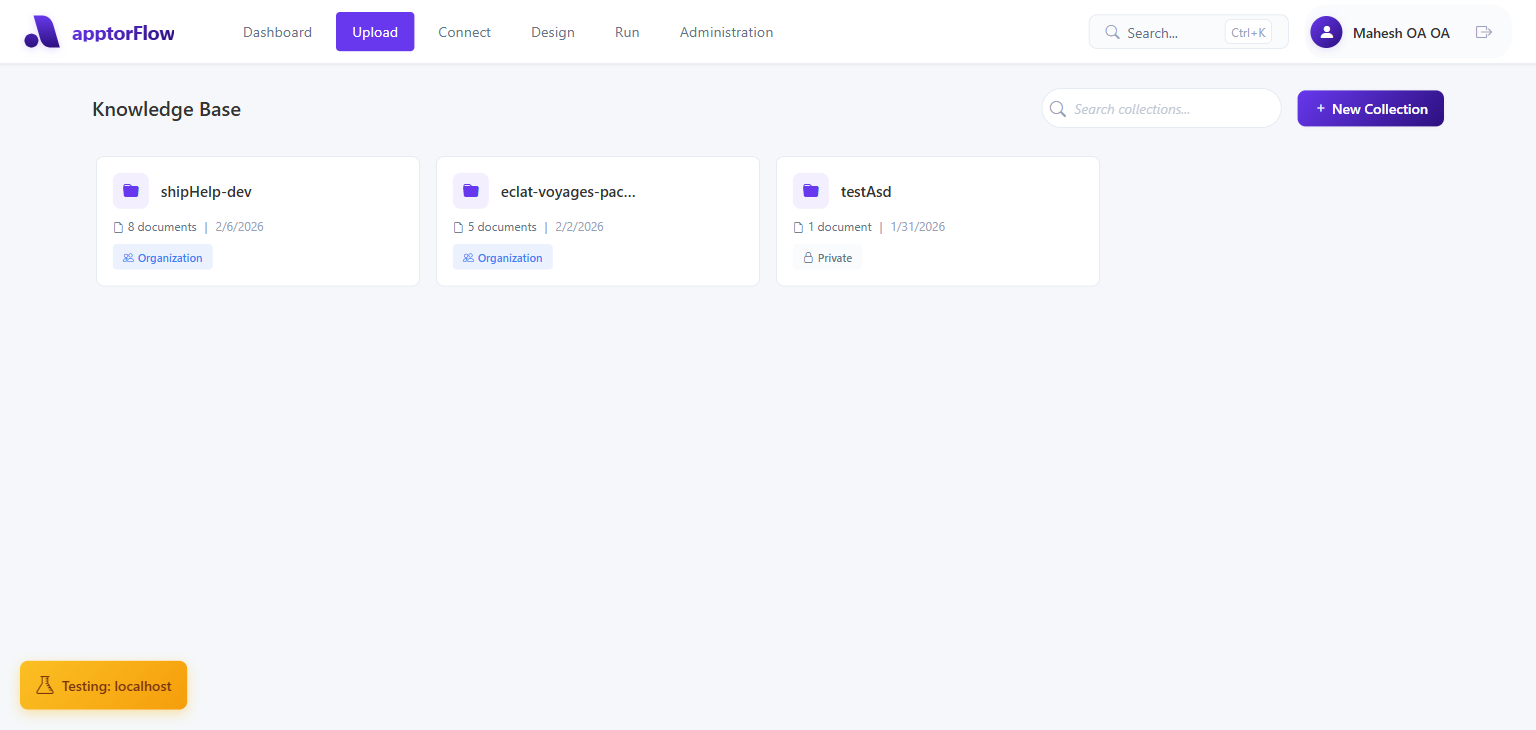
Manage RAG document collections. Upload documents (PDFs, Word docs, plain text, etc.) and organize them into collections. Workflow AI nodes can search these collections at runtime.
Connections (/connections)
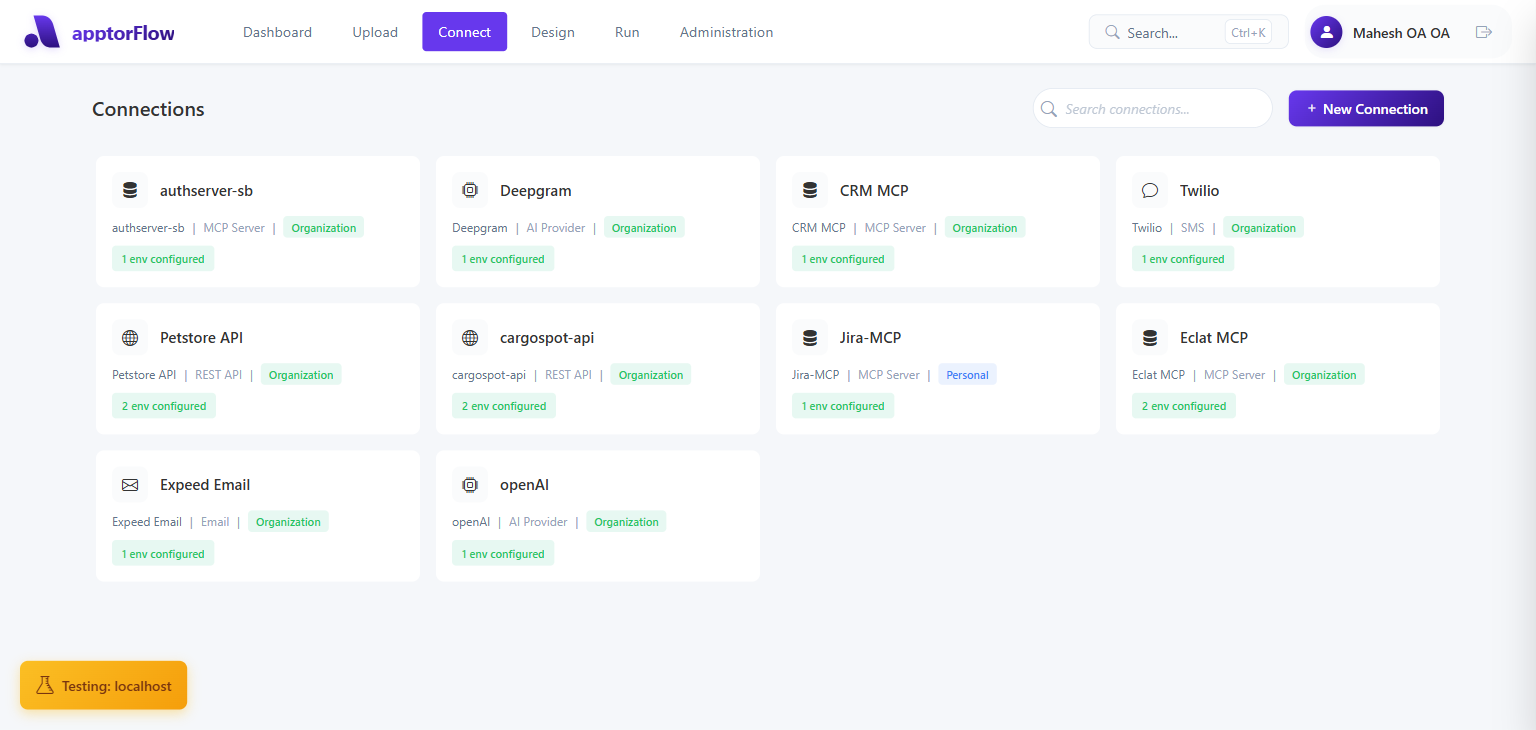
Create and manage named integration connections — REST APIs, AI providers, email services, SMS providers, SQL databases, and MCP servers. Connections store credentials per environment (Development / Production) so workflows don't embed secrets.
Workflow Designer (/designer/:id)
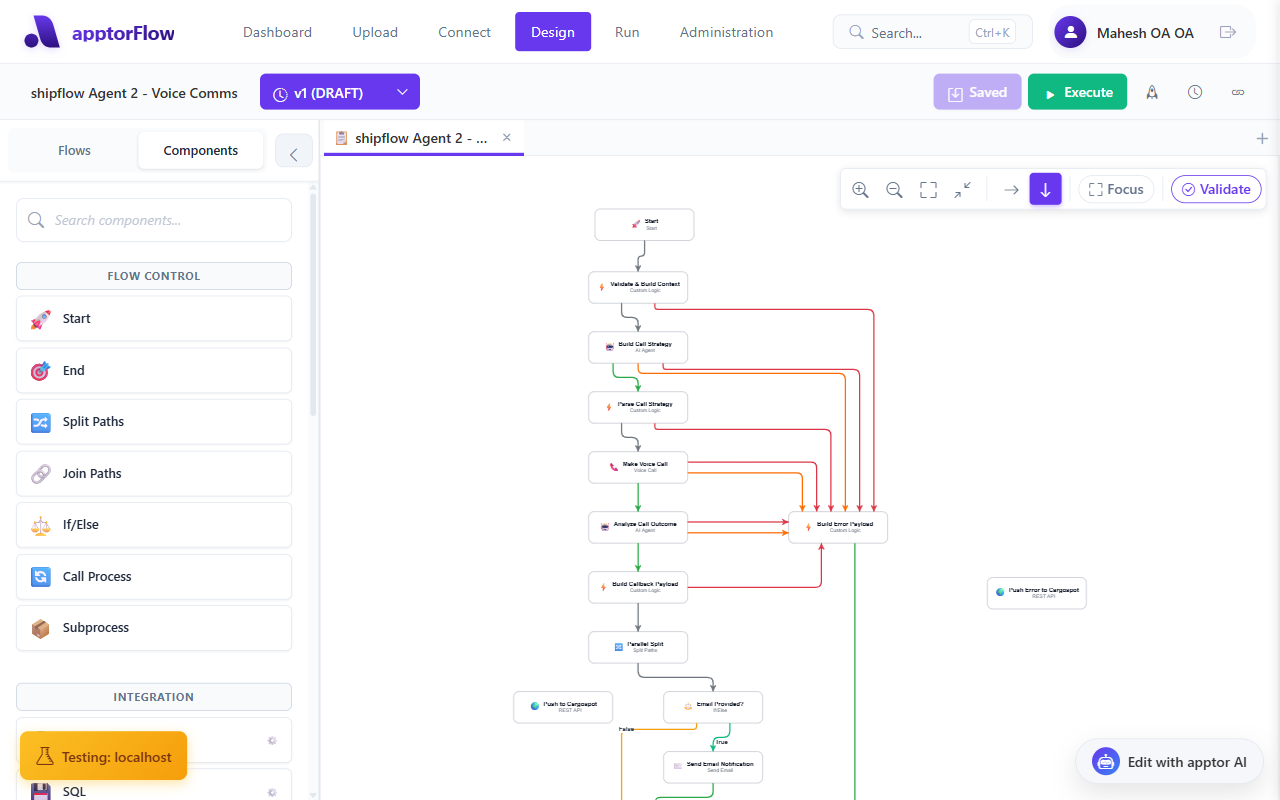
The visual drag-and-drop editor. Build workflows by dragging nodes from the left panel onto the canvas, connecting them, and configuring properties in the right panel.
Execution Monitoring (/process-instances)
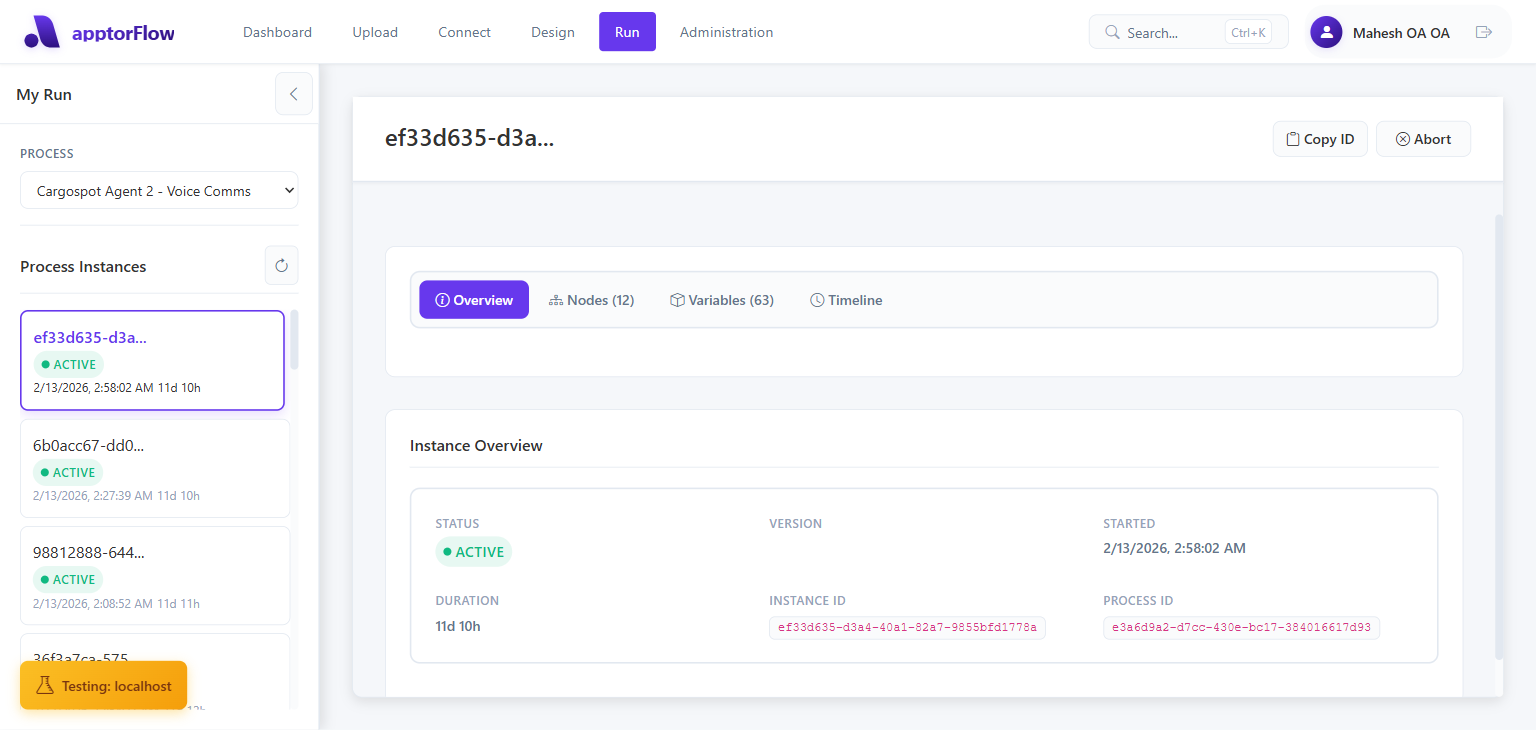
Track all workflow executions. Select a workflow from the left panel to see its instances. Click any instance to inspect the step-by-step execution log, node statuses, and variable values.
Administration (/admin)
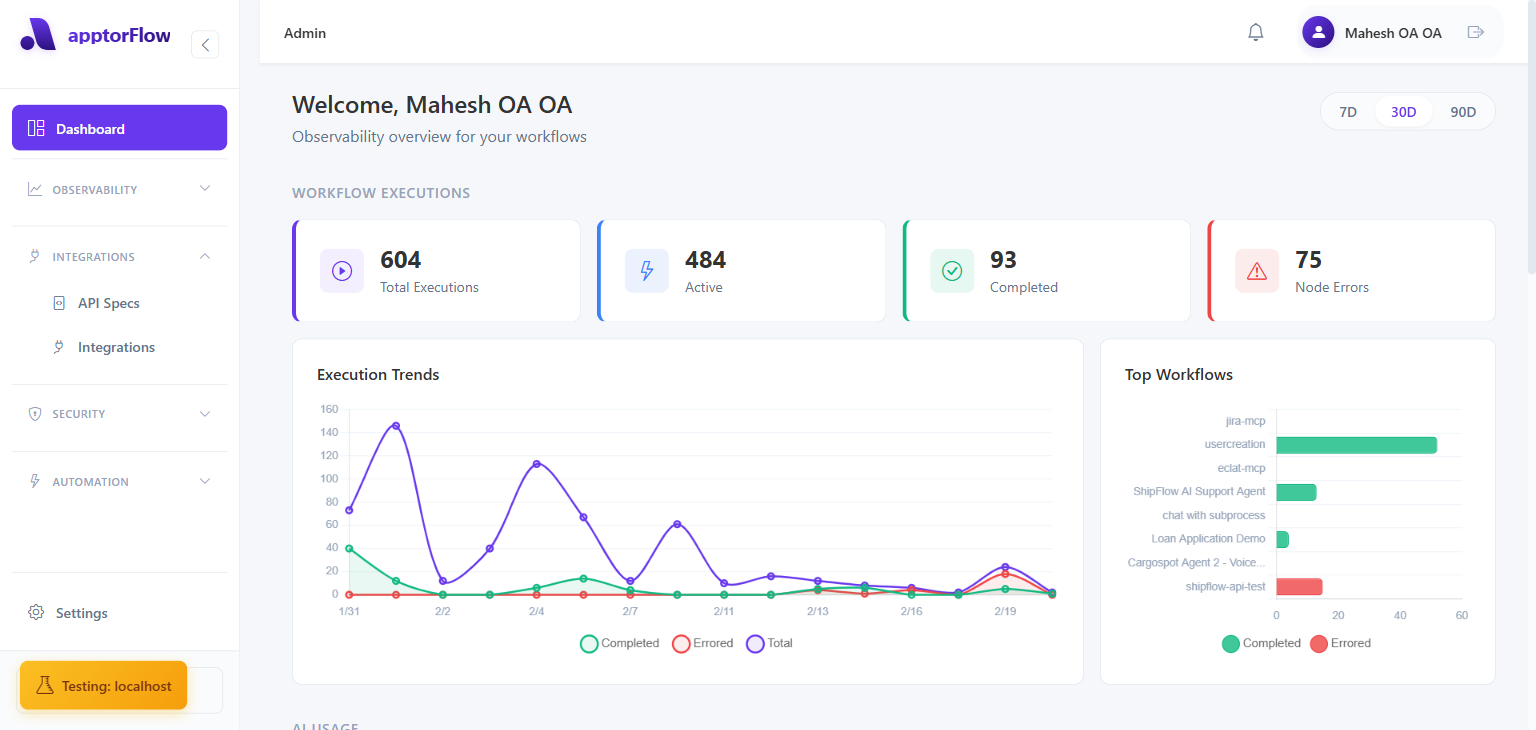
The admin area has a dedicated left sidebar with sections:
| Section | Pages |
|---|---|
| Observability | Process Analytics, AI Analytics, Dead Letter Queue |
| Integrations | API Specs, Integrations |
| Security | Identity Providers, Users, API Keys, Secrets |
| Automation | Webhooks, Webhook Health |
| Settings | Organization settings |
Pages in This Guide
| Guide | What It Covers |
|---|---|
| Getting Started | Login, first workflow, quick orientation |
| Workflow Designer | Canvas, node palette, toolbar, connecting nodes |
| Properties Panel | Configuring individual nodes |
| Executing Workflows | Run workflows, monitor executions, inspect logs |
| Version Management | Save, publish, view version history |
| Connections | Creating and managing integration connections |
| Process Analytics | Execution metrics, AI usage, performance analysis |
| Knowledge Base | Document collections and RAG search |
| A2UI Components | AI-generated dynamic UI component catalog |